Briefing & Actions contains several settings worth knowing. Six groups sit in it, and the On this page links across the top jump between them.
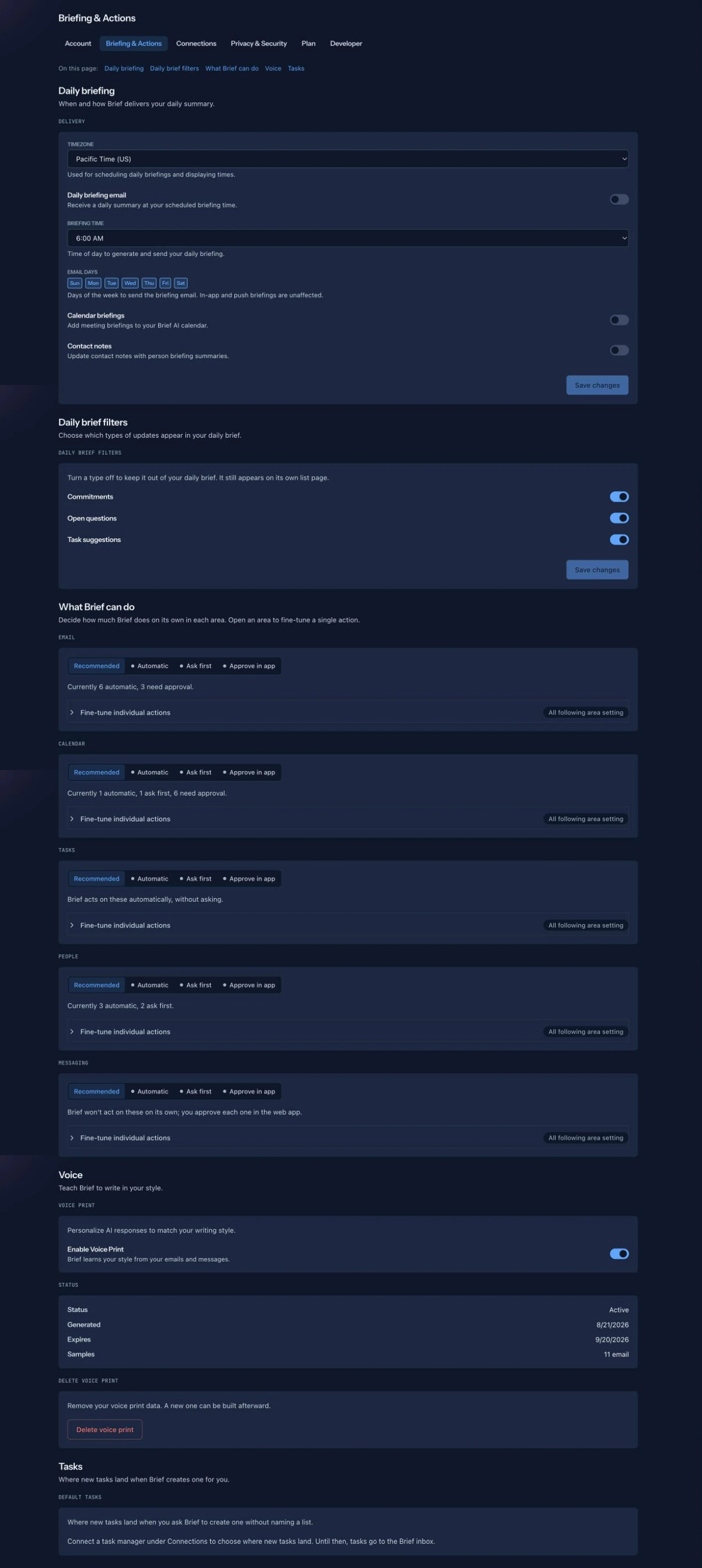
Several of these sections have articles of their own, because they carry more than this screen tour can.
Daily briefing
Delivery: your timezone, what time the brief is generated, which days it goes out, and a toggle that adds meeting briefings to your calendar.
The timezone hint is worth reading twice: "Used for scheduling daily briefings and displaying times." The timezone governs both when your brief arrives and how every time in the product is shown to you.
Full detail, including how these controls govern a WhatsApp brief: Tuning your daily brief.
Where the brief arrives, the email included, and which types of item it carries are not on this screen. They are under Settings → Notifications, in the Daily brief group. A line in the Delivery card links there. See Tuning your daily brief, which is where to go if the brief is too long.
What Brief can do
The approval settings. Three trust levels across five areas, with a per-action override, and a default that holds back anything another person would receive.
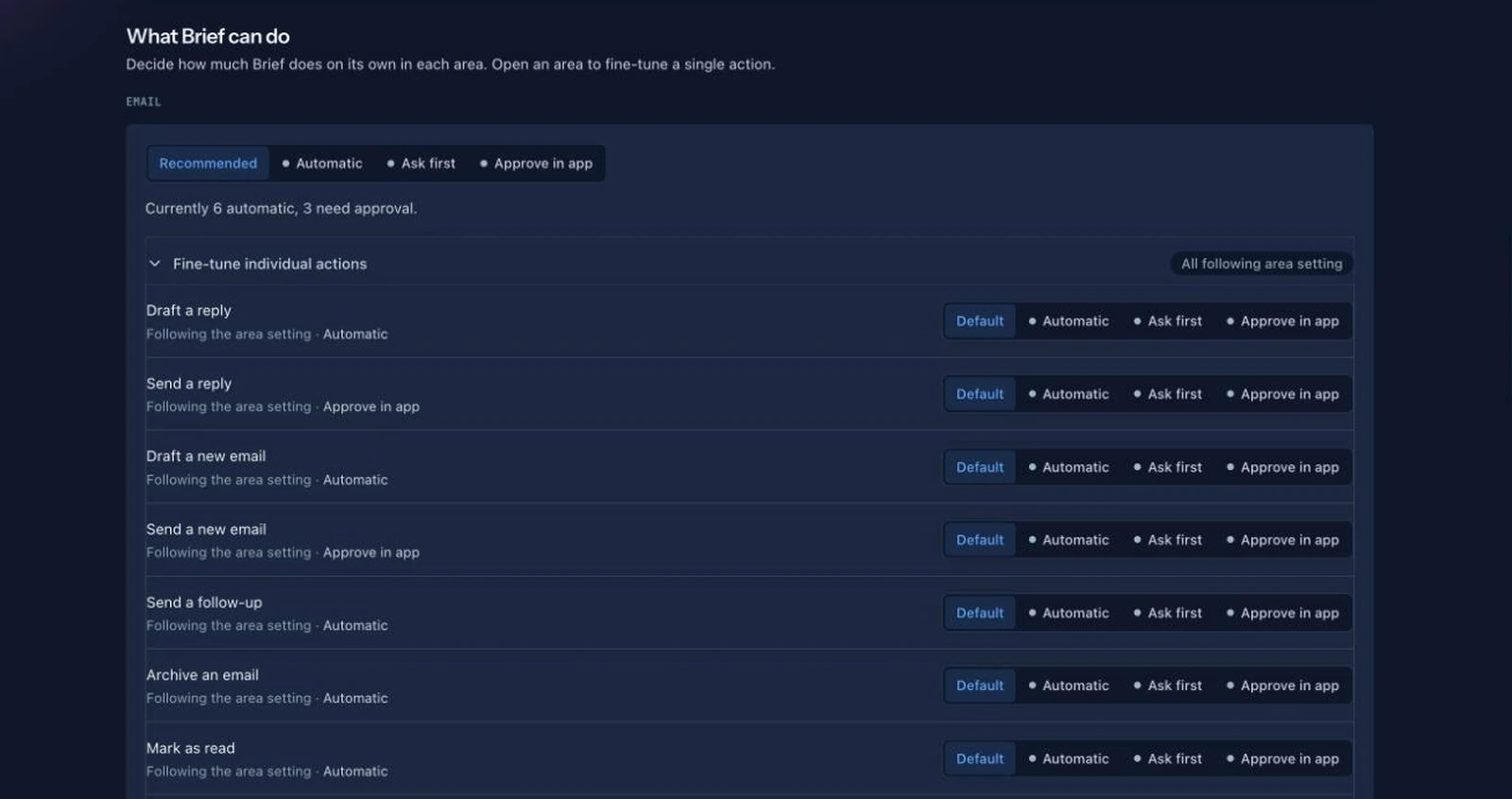
Every action and its default is in What Brief can do on your behalf.
Product updates
Two controls governing how Brief tells you what is new. Cadence is Daily, Weekly or Off, and drives a short list of what changed, shown in the app. Discover tips is separate: one tip a day about something in Brief you have not tried yet, surfaced on a new chat, under your daily brief and in its email.
If you have ever wondered why a feature you needed went unnoticed for a month, this is the group that answers it. Off is a real choice, but it is a choice.
Audio
Voice, in both directions. Read my brief aloud is the switch, and turning it on adds a Listen control to your brief and a listen link to your daily email. It also unhides the rest of the group: the voice Brief speaks in, the speed and delivery, how much of the brief gets read, and the standing instruction Brief follows when you talk to it in a spoken conversation.
The voice you choose here is the one Brief reads your morning in and the one it answers you in. See Using Brief by voice.
Not to be confused with Writing voice below it. Audio governs how Brief sounds when it speaks; Writing voice governs how it writes when it drafts for you.
Writing voice
"Personalize AI responses to match your writing style." This is the voice print, and it is the reason a draft Brief writes for you can sound like you rather than like a tool.
Turn it on with Enable voice print. Brief then reads how you write and builds a profile from it, and the card shows you where that stands:
- Status is Building while Brief is still gathering, Active once the print is usable, and Not available when there is nothing to build from yet.
- Generated is when the current print was built.
- Samples is how many pieces of your writing went into it.
Delete voice print removes the data: "Remove your voice print data. A new one can be built afterward." Use it if the print was built during an unrepresentative stretch, say a fortnight of one-line replies from your phone, and you would rather Brief started over.
If you are asking Brief to draft messages to your team, turn this on first. It costs one toggle and it is the difference between a draft you send and a draft you rewrite. See From briefing to delegated work.
Tasks
Default Tasks answers one question: "Where new tasks land when you ask Brief to create one without naming a list."
It is three dropdowns, narrowing left to right:
- Manager is the task system: Brief itself, Google Tasks, Microsoft To Do, Slack Lists, Todoist, or Linear. None (Brief inbox) leaves new tasks in Brief without syncing them out.
- Account is which connected account of that system to use, for anyone with more than one.
- List is the specific list inside it.
Worth setting early. Until you do, a task you asked for in chat is somewhere you did not choose, and the most common version of "Brief created a task and I cannot find it" is really "it went to the default I never set."
A manager only appears here once its account is connected. See Connection settings.