Settings → Notifications decides what Brief tells you between daily briefs, when, and where. If Brief is sending you more than you read, the first group on the screen is the one to change, and it takes one click.
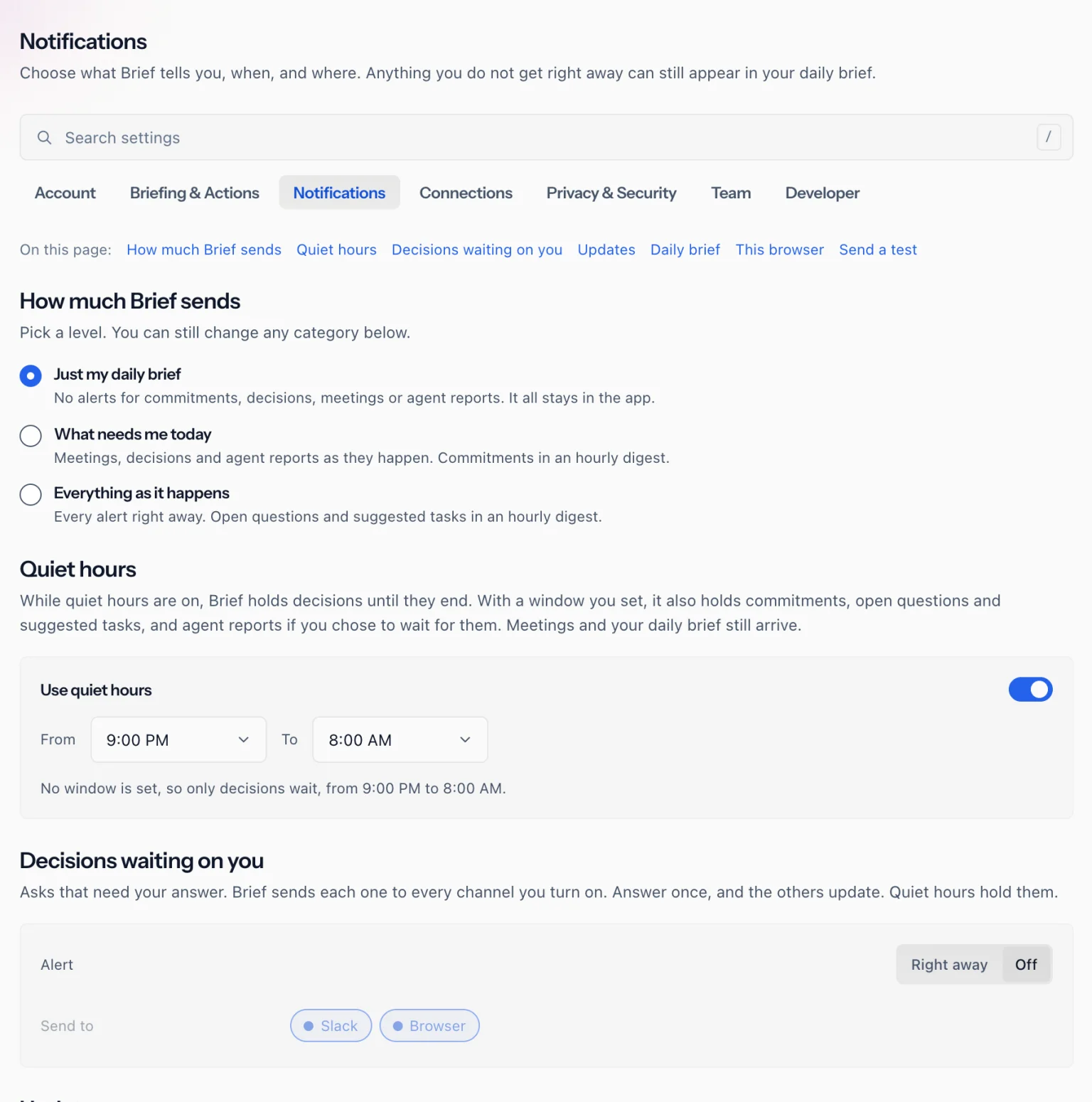
Nothing you turn off here is lost. An item that does not alert you is still in the app, and it can still appear in your daily brief.
How much Brief sends
The first group offers three levels:
- Just my daily brief. No alerts for commitments, decisions, meetings or agent reports. It all stays in the app, and the daily brief carries what you include in it.
- What needs me today. Decisions waiting on you, meeting alerts and agent reports arrive as they happen. Commitments come in an hourly digest.
- Everything as it happens. Decisions, commitments, meeting alerts and agent reports arrive right away. Open questions and suggested tasks come in the hourly digest.
A level sets when each type of item alerts you, not where. Turning one channel off, say email for agent reports, keeps you on your level. The one exception is the hourly digest: a level that sends anything hourly turns on one digest channel if none is on, as described under Hourly digest.
Picking a level replaces the alert choice of every type it covers. If you have changed types one by one in the groups below until they match no level, none of the three is selected, and the screen says that picking one replaces your settings.
On Just my daily brief, your daily brief email says so near the top: "Alerts are off: you get just your daily brief," with a Change notifications link back to this screen.
Which level you start on
New accounts start on Just my daily brief, and the notifications step of setup offers the three levels.
Accounts set up before the levels arrived in November 2026 may not be on it. If you had changed any notification setting by then, Brief kept your alerts as they were, which for most types meant right away, and asks you once, in a card at the bottom right of the app, to pick a level. Keep mine leaves your settings alone. If you are getting an alert for every decision Brief finds and never chose that, this is the likely reason, and picking a level here fixes it.
Quiet hours
Quiet hours hold alerts overnight, or for any window you choose, and send them when the window ends.
Use quiet hours starts on, with no window of your own. Until you set one, Brief holds only decisions and meeting wrap-ups, from 9:00 PM to 8:00 AM.
Set a From and To time and the window holds more: commitments, open questions and suggested tasks, account notices, the hourly digest, and the iPhone notice for your daily brief. Agent reports wait too, if you tick Wait until they end on their row under Updates. Meeting alerts, chat replies and the rest of your daily brief still arrive during quiet hours.
Turn Use quiet hours off and Brief holds nothing new. Alerts it was already holding arrive when the earlier quiet hours would have ended.
Decisions waiting on you
These are the asks that need your answer: a decision Brief wants you to confirm. Alert is Right away or Off, and Send to picks the channels. Each decision goes to every channel you turn on. Answer it in one and the others update.
Decisions never appear in the daily brief email. With the alert off, they wait on the Decisions page. See Decisions and questions for what Brief does with them.
Updates
This group has one row for each other type of alert. Each row shows only the choices that type allows, a Send to line with its channels, and a During quiet hours line that says what quiet hours do to it.
- Commitments. Promises you made, and promises others made to you. Right away, Hourly or Off.
- Meetings. Prep before each meeting, and your schedule for the day. Right away or Off. These arrive even during quiet hours.
- Meeting wrap-ups. The decisions made and your commitments, after each meeting. Right away or Off. No level turns these on, so they stay off until you turn them on here.
- Open questions and Suggested tasks. Hourly or Off. Neither alerts one at a time.
- Agent reports. Results from your agents. Right away or Off. Email and chat get the full report, and a push is a short notice. See Scheduled agents.
- Chat replies. A push to your iPhone or browser when Brief finishes a reply you are not looking at. No level changes it.
- Account. Notices about your account, such as a connection you need to reconnect. These cannot be turned off, and they need at least one channel.
Email and Browser always show on the Send to line. Slack, Teams, Google Chat, WhatsApp, RCS and iPhone show once Brief can reach you there. Until Email or Browser can reach you, it carries a link to set it up.
Hourly digest
Every type set to Hourly goes into one message at the top of each hour that counts what is waiting, with a link to those items. Its own Send to line picks where it goes, and Includes lists the types in it.
Until at least one digest channel is on and reaches you, hourly items wait in the app and in your daily brief. Picking a level that sends anything hourly turns one on for you, a push channel first, when the digest has none.
Daily brief
Where the daily brief arrives, and which types of item it carries in the app and in the email. Tuning your daily brief covers this group, and when the brief goes out is under Settings → Briefing & Actions.
This browser
Turns on Brief alerts in the browser you are using. Once they are on, Browser on each Send to line reaches you there.
Send a test
Pick an alert type and the screen says where that alert would go with your settings as they are now, including whether quiet hours would hold it. Send a test sends one. A test alert has no action buttons, and you can send one a minute, up to 20 a day.
If Brief is sending too much
In order of how much each one quiets:
- Pick Just my daily brief. Alerts for decisions, commitments, meetings and agent reports stop, and the daily brief stays. Chat replies, account notices and any meeting wrap-ups you turned on still come.
- Keep What needs me today and set Decisions waiting on you to Off, if decisions are most of what arrives.
- Set Commitments to Hourly, so they come as one count an hour rather than one alert each.
- Set a quiet hours window that covers the hours outside your working day, so most alerts wait until your day starts.
If what is too long is the daily brief itself, see Tuning your daily brief.