Brief connects to your email, calendar, chat and task manager directly. The rest of your work lives in other systems: a project tracker, a CRM, a document store, a notetaker. Brief cannot see any of it until you connect it.
MCP closes that gap. MCP (Model Context Protocol) is an open standard that lets a system publish a set of tools an assistant can call, such as "search issues", "read a document" or "update a record". A growing number of software vendors run their own MCP server. Register one under Settings → Connections and the system behind it becomes available in the Ask Brief chat. You can ask about what is in it, and ask Brief to update it.
This article covers the steps for any hosted MCP server that Brief can sign in to, which is most of them. Before you start lists the few kinds that will not work. If you would rather reach hundreds of systems through one connection, Connecting Brief to other systems with Composio walks through the same steps with Composio as the server.
What this lets Brief do
Agent tools bring your other systems into Brief. The Brief MCP server runs the other way: it lets an outside assistant such as ChatGPT or Claude reach your Brief context from wherever you are already working.
Once a server is connected and its tools are enabled, you ask for what you need in chat, and Brief reads it alongside your email, meetings and commitments.
This article uses Granola as its example. Granola is an AI notepad for meetings: it listens through your computer rather than sending a bot into the call, and turns what was said into notes you can search later. Its MCP server lets Brief read those notes, so you can check them against everything else Brief knows:
Look at my Granola notes from this week's meetings with the Hartwell team and tell me what I promised, and whether I've followed up on it in email.
In my Granola notes from last Tuesday, what did we decide about the pricing change, and who has acted on it since?
Most of Granola's tools read, though a few can change things, such as filing a note into a folder. Other servers publish many more tools that create or update records. Brief writes those changes straight into the other system, so enable only the write tools you mean to allow.
What it cannot do yet. Outside systems are available in chat and not to agents. An agent cannot read another system on a schedule or tell you when something changes there. Ask in chat when you want the answer.
Before you start
You need three things.
The server's URL. The vendor publishes it, usually on a page titled something like "MCP server", "Connect an AI assistant" or "Remote MCP". Granola's, for example, is https://mcp.granola.ai/mcp. Brief connects over streamable HTTP, which is the standard way to reach a hosted MCP server. A server that the vendor tells you to install and run on your own computer, started with a command such as npx or uvx, will not work in Brief. Look for the hosted, remote version instead.
An account in that system. Brief signs in to the server as you and sees only what your account can see there.
A way to sign in. Most hosted MCP servers sign you in with the vendor's own login screen, and Brief handles the rest. A few ask you to register an OAuth app with them first. Find out which before you begin, because it changes step 1. A server that needs no sign-in at all connects as soon as you click Connect. Brief does not take an API key or a pasted access token, so a server that only accepts one of those will not work.
Step 1: add the server in Brief
- In Brief, go to Settings → Connections, and navigate to the Agent tools group. The MCP servers card is there.
- Paste the server's address into Server URL.
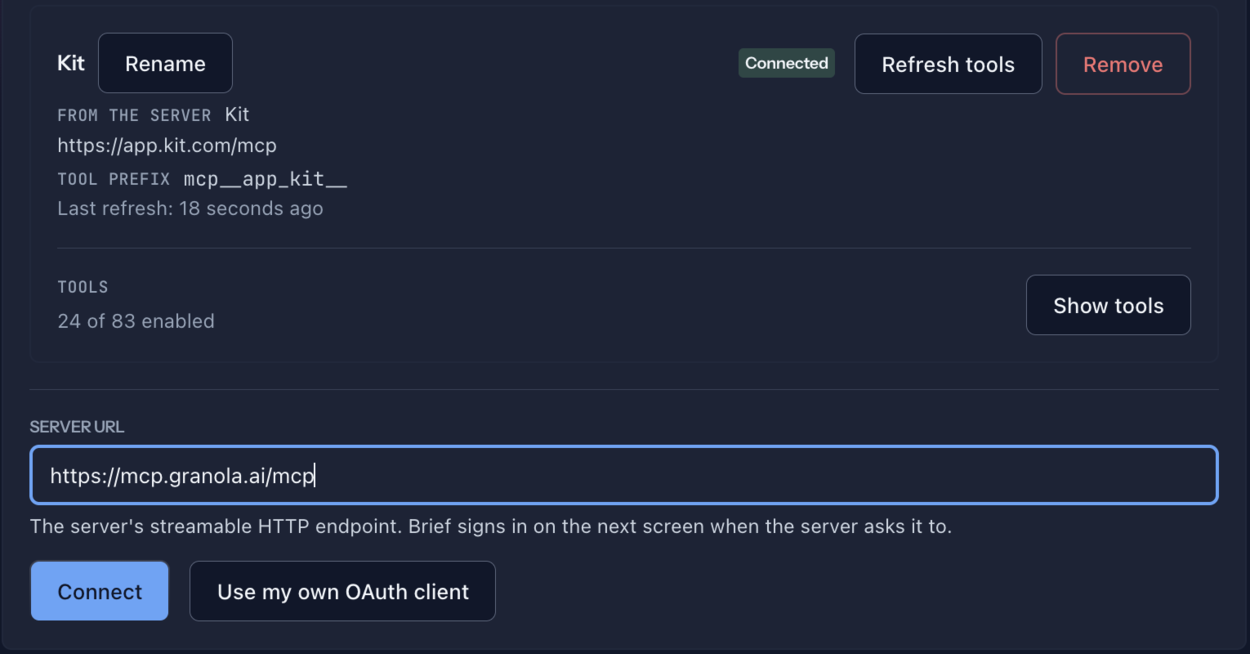
- Click Connect.
If the server signs you in with its own login screen, Brief sends you there next. Sign in with your account in that system and approve the access it asks for. Granola works this way: you sign in with your Granola account. You come back to the Connections screen with the server listed and its status reading No tools enabled.
If the server needs an OAuth app you registered yourself, click Use my own OAuth client before you click Connect. Brief shows a redirect URI. Register an app with the vendor, give it that redirect URI, then copy the Client ID, and the Client secret if the vendor issued one, into the two fields. Leave both fields empty for any server that did not ask for them.
Step 2: choose the tools Brief may call
A connected server's tools do nothing until you enable them. This is deliberate: you decide exactly which actions Brief can take in the other system.
- A server you just connected opens with its tool list showing. For a server connected earlier, click Show tools on its card. Each tool has a checkbox and the description the server gives it.
- Check the tools you want Brief to use. Each change saves as you make it.
Start with the tools that read, such as search, list and get. Add the tools that create, update or delete only once you trust how Brief uses that system, and only the ones you mean to allow. A tool you leave unchecked is one Brief cannot call.
You can enable up to 50 tools across all your servers combined, and connect up to 5 servers. That is a reason to pick the tools you need rather than checking All tools.
The card also shows a Tool prefix, the short name Brief uses to keep this server's tools apart from those of other servers. The card's title is a name you can change to whatever helps you recognize it. The URL under it is what actually identifies the server, so check it if two servers look alike.
Step 3: check that it works
Open the Ask Brief chat and ask a question that only that system can answer. For Granola:
List my Granola meetings from the last week and summarize the notes from the most recent one.
What Brief can reach depends on your account in the other system. On Granola's free plan, for example, the server returns only notes from the last 30 days, and meeting transcripts need a paid plan.
Brief calls the server and answers from what comes back. You can start asking real questions of that system now, or giving instructions on what to update.
If nothing comes back, the usual cause is a tool left unchecked in step 2. Go back to the card and confirm the tools you need are enabled and the status reads Connected.
When a server needs attention
The status on each card tells you what to do.
- Connected: working, with at least one tool enabled.
- No tools enabled: connected, but Brief cannot call anything yet. Enable a tool under Show tools.
- Reconnect needed: the server stopped accepting Brief's sign-in, often because the access was revoked or expired on the other side. Click Reconnect and sign in again. If you use your own OAuth client and its secret has changed, enter the new one there.
- Not responding: Brief could not reach the server. If the vendor's service is up, click Try again. If the URL is wrong, click Remove and connect again with the right one, since a server's URL cannot be edited.
- Not connected: Brief has not reached the server yet, usually because the sign-in was not finished. Click Connect to start it again.
When a vendor adds new tools to its server, click Refresh tools to see them. A tool the server stops publishing drops out of the list, and if it comes back later, it comes back switched off.
To disconnect a server, click Remove. Brief stops calling it and deletes the sign-in it holds, and asks the vendor to revoke that access too where the vendor supports it. You can connect it again from the same screen, though you will need to choose its tools again.
When a request does not work
The result is too long. Brief can take in about 32,000 characters from any one tool call. A long document, a big search or a full transcript can run past that. Ask for less at once: a named section, a narrower search, one item at a time.
The answer is about a file or an image. Brief reads the text a tool returns, including text files. Images, audio and other binary files come back as a note that they exist, not their contents. Ask the server for a text version where it offers one.
Brief says it cannot do something the system can. The server may not publish a tool for it, or you may not have enabled that tool. Look under Show tools for one that fits. If none does, that system's MCP server does not offer it yet.
Related
- Connecting Brief to other systems with Composio is a worked example of these steps, and one connection that reaches hundreds of systems.
- Connection settings covers the Connections screen itself.
- Connecting AI assistants to the Brief MCP server is the other direction: reaching Brief from ChatGPT, Claude, or Grok.
- Agents covers what agents can do today, and what they cannot reach yet.