Brief is useful the moment it finishes syncing, but there are three things worth doing before you go any further. They are the same three we walk through on every onboarding call, they take about ten minutes between them, and each one changes what Brief can do for you rather than how it looks.
Set when your briefing arrives
Go to Settings → Briefing & Actions and open the Daily briefing group.
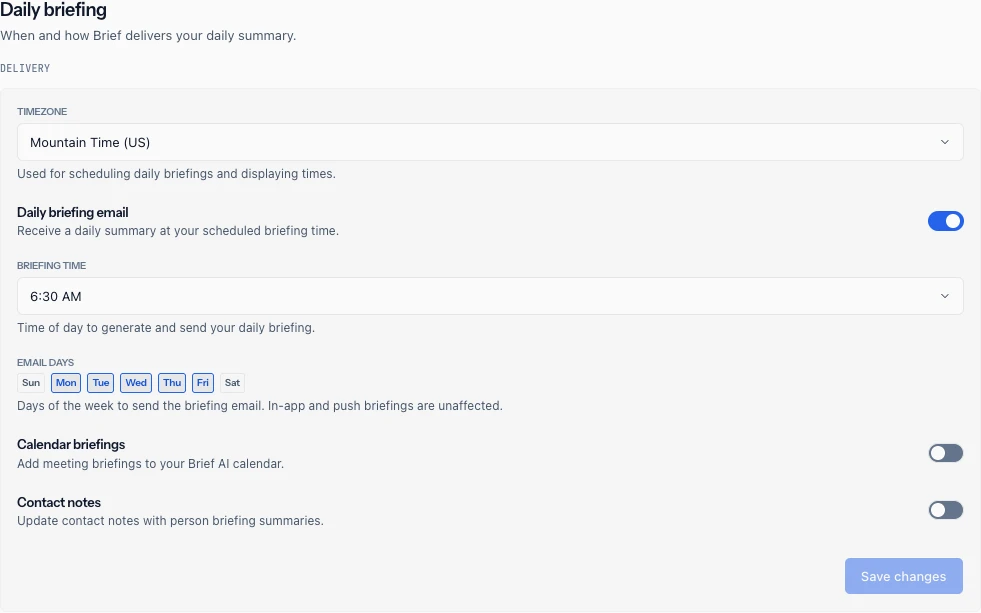
Briefing time sets the time of day Brief generates and sends your daily briefing, in half-hour increments. The default is 6:00 AM local time, which suits people who read before the day starts and nobody else. Pick the moment you actually have room to read something.
Email days is a row of day chips for the days of the week you want the briefing email. If you read it on weekdays and ignore it on weekends, turn Saturday and Sunday off. Worth knowing that this setting is scoped to the email only. The in-app and push briefings are unaffected, so the brief is still waiting for you in the app on a Sunday if you want it.
Timezone sits above both and is worth getting right first, because it governs both when your briefing is scheduled and how every time in the product is displayed to you.
A briefing that lands when you have no room for it goes unread, and an unread briefing is the whole failure mode this product is trying to avoid. See Briefing and action settings for the rest of that screen, and Tuning your daily brief for making the brief shorter once it is arriving at the right time.
Connect WhatsApp
Go to Settings → Connections and find the WhatsApp card in the Messaging group. Linking takes about a minute and you confirm it from your phone.
This is the one people underuse. Once it is linked, Brief runs as a full chat surface in WhatsApp, which means you reach it from your phone without opening a browser or finding the app. Two moments make the case for it better than any feature description.
The first is walking into a meeting. Ask who you are about to meet and what is open with them, and you get the relationship history and the outstanding commitments back in the thirty seconds before you sit down.
The second is walking out of one. Everything you agreed to is still in your head and about to evaporate. Dictate the takeaways and the follow-ups into WhatsApp while you are still in the hallway, and Brief records them against the right people and the right work.
See Connecting WhatsApp to Brief for the setup steps and what the connection does once it is live.
Connect the rest of your channels
Still on Settings → Connections, under Connect another account. Brief connects to five accounts: Google, Microsoft, Zoom, Todoist and Slack. You already have one of the first two from signing in, and the point of this step is everything else.
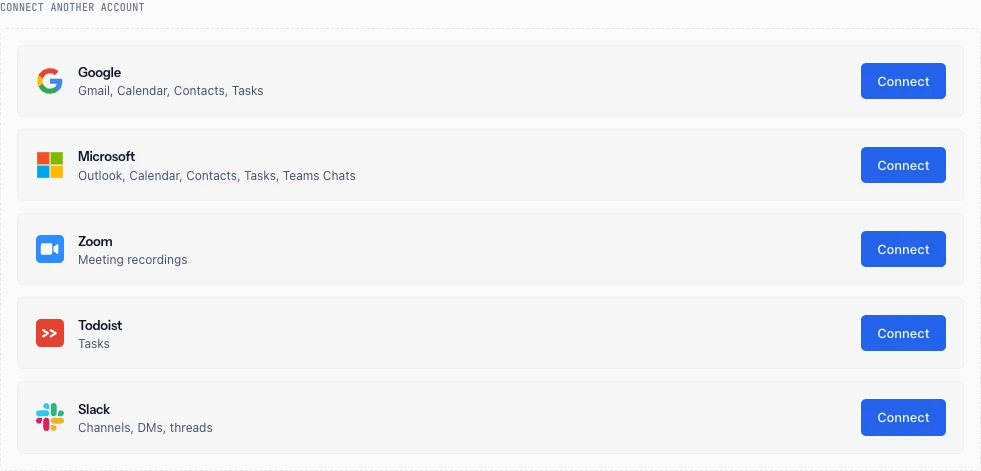
Each card names what that connection brings in, which is the quickest way to see where a given source comes from. It is close to complete rather than exactly complete, so the sections below fill in what the cards leave out, one account at a time.
The reason to connect all of them rather than the one or two that feel primary is that your work does not respect the boundary between them. A decision gets made in a meeting, confirmed in Slack, and followed up by email, and the only way Brief can hold that as one thread is if it can see all three. Connect the channels your work actually runs through and it catalogs across them.
Connect Microsoft
If you are a Microsoft user, the single Microsoft connection you already made covers more than you might assume. Outlook mail, your calendar, your contacts, your tasks, and your Teams chat all arrive through that one connection. There is no separate Teams connector to add.
Connect Google
If you are a Google user, the same holds for Gmail, Google Calendar, Contacts and Tasks, and for Google Chat as well. Chat is the one thing the Google card does not name, but the connection carries it, and you grant it from the Chat row on the account card once you are connected.
Connect Slack
If your team runs on Slack, connect it. It is a separate connection from either of the above, and without it every decision and commitment that happened in Slack is invisible to Brief.
Connect Zoom
If you use Zoom, connect it too, and this one takes a second step. Zoom is where your meeting transcripts come from. Brief takes the transcript of each meeting Zoom transcribes, whether or not it was recorded, and the meeting summary when Zoom AI Companion wrote one. It never downloads the video or the audio. Teams and Google Meet recordings do not reach Brief through the Microsoft or Google connection, so if your meetings run on Zoom and you skip this, Brief is working from your calendar entry rather than from what was actually said in the room.
Each person connects their own Zoom account, and Brief does not need your Zoom administrator to approve it. The exception is a company Zoom account set to allow only pre-approved apps, in which case ask your administrator to approve Brief in the Zoom App Marketplace first. Find the Zoom card under Connect another account, select Connect, then sign in to Zoom and allow the access Brief asks for.
Turn on transcripts in Zoom
Connecting Zoom is only half of it, because Brief reads the transcript rather than the audio and Zoom has to be producing one. Zoom produces transcripts in two ways, and Brief reads both.
For meetings you record to the cloud, turn on Create audio transcript in Zoom, under Recording in your own settings or Recording & Transcript if you administer the account, in the advanced cloud recording settings. Zoom then generates a transcript for cloud recordings made after that, once it has finished processing each one, so a transcript follows the recording rather than appearing the moment the meeting ends. Zoom lists the prerequisites as a Pro, Business, Education or Enterprise account with cloud recording enabled, so none of this applies on a free plan. Zoom's own instructions are in Enabling or disabling audio transcription for cloud recordings.
For meetings you don't record, Zoom AI Companion makes the transcript. Turn on Meeting Summary with AI Companion and Allow meeting hosts to retain and access meeting transcripts in your Zoom settings. Brief finds these meetings through their AI Companion summary, so a meeting with no summary can take longer to arrive.
If you don't see Zoom transcripts
A Zoom meeting that never shows up in Brief almost always comes down to one of these:
- Your Zoom account is on the free plan. Transcripts need a Pro, Business, Education or Enterprise account with cloud recording enabled.
- The transcript settings are off. Turn on the settings described above for the kind of meeting you held. Your Zoom administrator may have locked them for the whole account.
- The meeting was recorded before you turned it on. The setting works going forward, so earlier recordings stay untranscribed.
- The meeting was recorded locally. A recording saved to your own computer produces no transcript. Record to the cloud, or turn on the AI Companion settings above.
- Zoom is still processing it. Zoom finishes the transcript after the meeting ends, and a long meeting can take a while.
If none of those explains it, email support@trybrief.ai with the date and topic of the meeting.
Disconnect Zoom
You can disconnect Zoom from either side.
- In Brief: go to Settings → Connections, select Remove on your Zoom card, and confirm.
- In Zoom: sign in to the Zoom App Marketplace, select Manage, then Added Apps, and select Remove next to Brief.
Either way, Brief stops syncing from Zoom and immediately deletes the transcripts and meeting summaries it synced. Commitments and decisions Brief already drew from those meetings stay in Brief until you delete your account. See Account and data control. To use Zoom with Brief again, connect it from Settings → Connections.
See Connection settings for operating that screen, and Supported sources and what Brief syncs for what each source contributes.